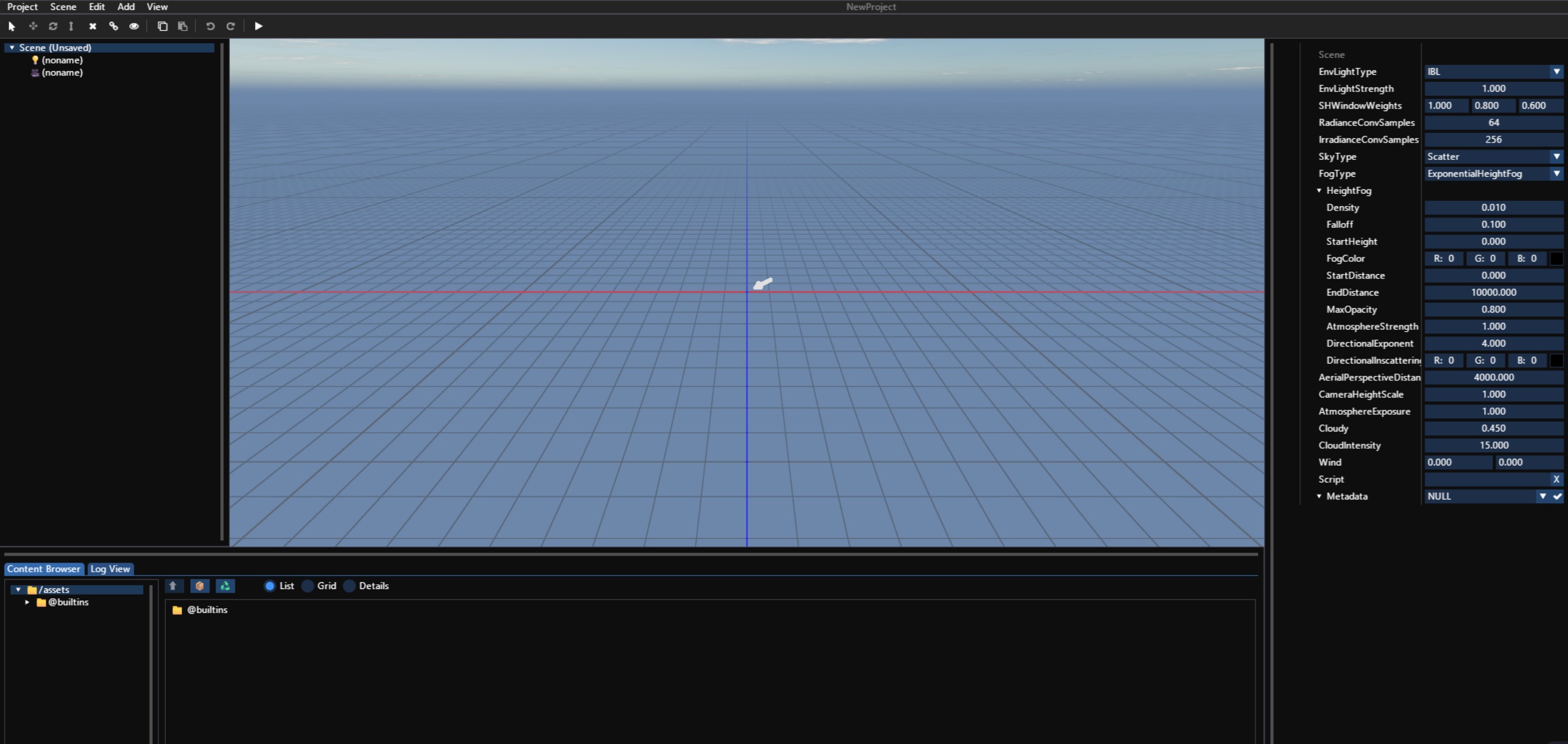
Editor Interface
The Zephyr3d Editor interface is organized from top to bottom as follows:
- Main Menu – The top menu bar, providing access to all features
- Toolbar – Shortcut buttons for commonly used tools
- Workspace – The main editing area
- Status Bar (center bottom) – Displays status information
The workspace is divided into four main areas:
| Area | Description |
|---|---|
| Scene Tree (left) | Shows the hierarchical structure of the scene |
| Viewport (center) | 3D view and scene editing |
| Inspector Panel (right) | Edit properties and component parameters |
| Content Browser / Log View (bottom) | Manage assets and view logs |
Keyboard & Mouse Shortcuts
Ctrl + S– Save the current scene- Mouse middle button – Pan the view
- Mouse right button – Rotate the camera
- Scroll wheel or
Ctrl + Middle Button– Zoom the view T– Switch to Move toolR– Switch to Rotate toolS– Switch to Scale toolEsc– Switch back to Select modeF– Frame the selected object in the view